The Right Way to Share Screenshots
Sometimes, you want to share a screenshot of something important. But do you know how to share screenshots without exposing something you don’t want to share?
We all like to post and share photos with friends and family. But are those photos showing more than you thought? There could be something hiding inside those photos that you don’t want other people to see.
That screenshot or photo could end up revealing more than you intended to. There’s more to a photo or a screenshot than just the things you can see. And it’s all because of something called metadata.
What is Metadata?
Metadata is information that is embedded into a photo. When you take a photo with your phone or a digital camera, the camera inserts information into the photo. This information could include:
- The date and time the photo was taken
- Your geographic location (if location services is on)
- The type of camera you’re using
- Which app was used to take the photo
Are you comfortable with strangers knowing all these things about you? Sometimes, information like this – especially geographic location – can be used to track you. This isn’t something you want to happen, especially if you’re posting anonymously.
There are other things to think about besides metadata. Have you ever scribbled something out of a photo or screenshot. You may think that using an edit tool as a marker would be enough to hide things. But did you know that it’s possible to see underneath that?
In this post, I will show you the right way to share screenshots – and photos, too. First, I will show you the best way to redact screenshots so that people won’t be able to see what you’ve tried to cover up. Then, I will tell you about an app that can do even more than that.
How to Redact Screenshots
iOS version
No matter how many times you write over something with the marker in Markup, someone may still be able to see what’s under it because the marker is semi-transparent. It is possible to find what’s under the highlighter by using a photo-editing app and adjusting settings like Brightness and Shadows.
Here’s a better way to use Markup. Instead of using the highlighter or pen, use Shapes to make a box and place it over what you want to hide.


Choose the option for a solid shape instead of an empty shape.

Android version
If you’re on an Android phone or tablet, use Google’s Photos app:
Select Edit.

Open Markup.

Select the Pen option.

Reintroduction to Signal
Signal is an app that can send secure text messages and phone calls, encrypting them so that it’s difficult for someone eavesdrop on your conversations. I wrote about Signal a few years ago. This is the first time I’ve used it since then, and I can’t believe how much it has improved.
There are a lot of great new features, but the one I’m going to talk about now is the camera. Not only can Signal make texts and phone calls, it can also do a much better job of deleting information from a screenshot and even prevent metadata from being created in the first place.
As I said before, a digital camera embeds lots of information inside a photo. But the camera app inside Signal prevents that from happening.
Here’s a comparison between a photo taken with Signal and a photo taken with my phone’s camera app. Both photos feature an apple on a wooden table, taken under the same conditions and on the same day.


As you can see, both photos have the time and date. But the photo I took with my camera app has detailed information about the phone and camera app settings. The photo I took with Signal does not have those details and the file size is much smaller.
Signal blur feature
The blur feature is a great way to hide anything you don’t want to be seen.
After taking a photo, tap the Edit button. In the Edit screen, select the Blur button. You can choose the switch to blur faces or draw on the photo to blur the parts you want to hide.


Screenshots have less metadata than photos, but it’s still there. You can use Signal to blur screenshots as well.
Take a screenshot the way you normally do. Using your phone’s Share feature, select Note to Self in Signal. When your screenshot opens in Signal, tap the send button to save it. You can edit the screenshot before or after you send it to Note to Self.

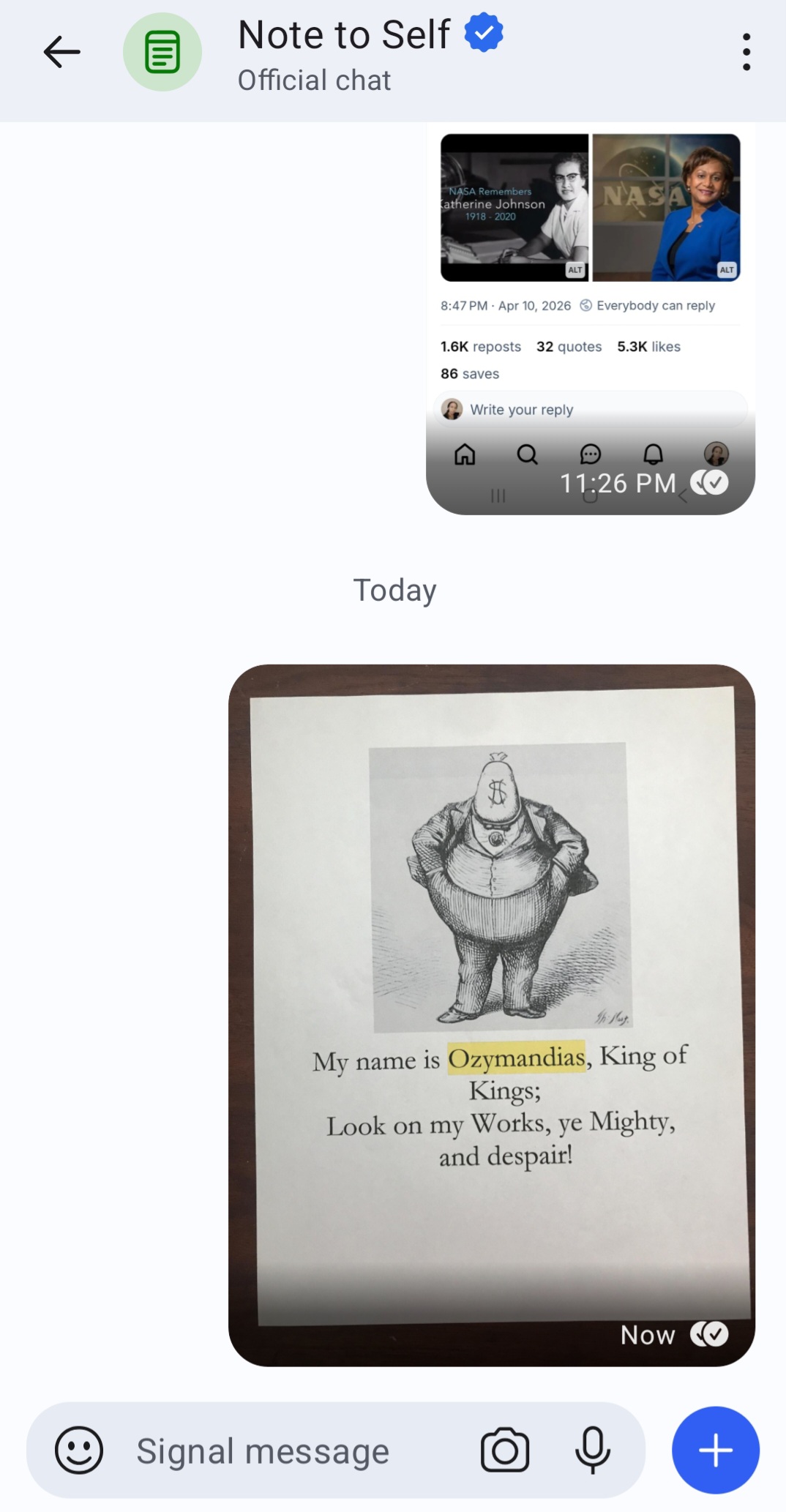
To sum up:
If you want to post pictures without accidentally revealing more than you want to, take a photo with Signal instead of your phone’s camera app.
If you want to share screenshots without accidentally revealing more than you want to, don’t use the highlighter to scribble out things. Instead, use shapes in iOS Markup, use the Markup feature in Google’s Photos app, or use the blur feature in Signal.
That’s how you can share screenshots – and photos – without exposing more than you meant to share.