Securing Meta: Protecting Your Facebook, Instagram, and Threads Accounts
What does “Securing Meta” mean? Let me explain. Your Facebook account is more important than you think. It’s a record of your family, your interactions with friends, your local community, and even the places you go online. Even if you don’t have a Facebook account, you probably have an account on Instagram or Threads. All three social media networks have one thing in common: they are all owned by the parent company Meta.
Given how important your Facebook, Instagram, and Threads accounts are, you have to keep them safe. In order to do that, you’ll need more than just a password. There are scammers online who want to break into your account to steal your information and identity. Your information and identity are very valuable.
The place to go to make everything secure is Meta Accounts Center. This is what controls everything related to your Facebook, Instagram, and Threads accounts.
On the Facebook website, click on your profile icon in the upper right-hand corner. Click on Settings and privacy, then Settings. Meta Accounts Center is on the left side of the page.
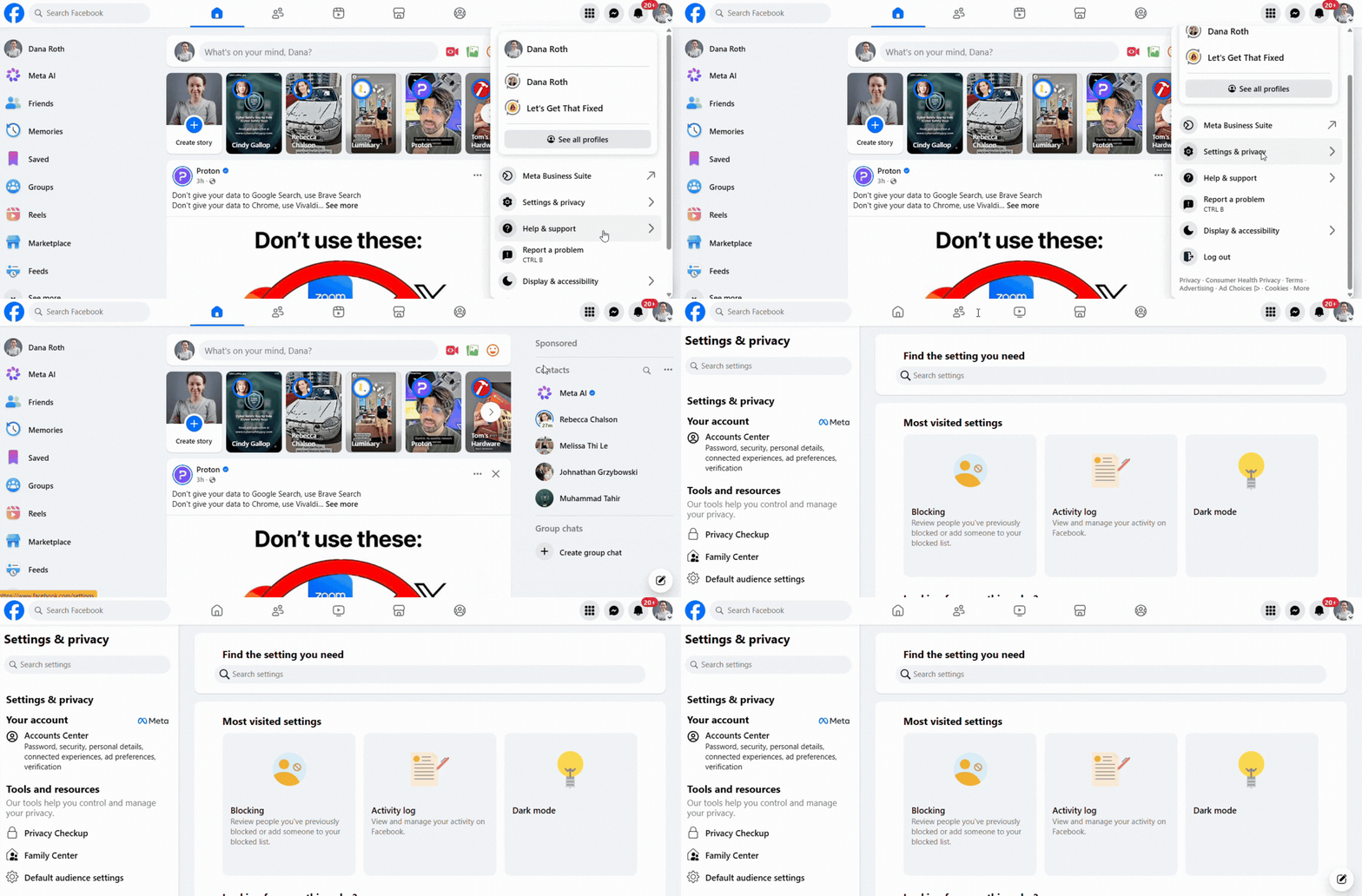
In the Facebook app, click on the menu button in the upper left-hand corner. Click on Settings and privacy, then Settings. Meta Accounts Center is at the top of the screen.
[insert animated GIF of Facebook app]
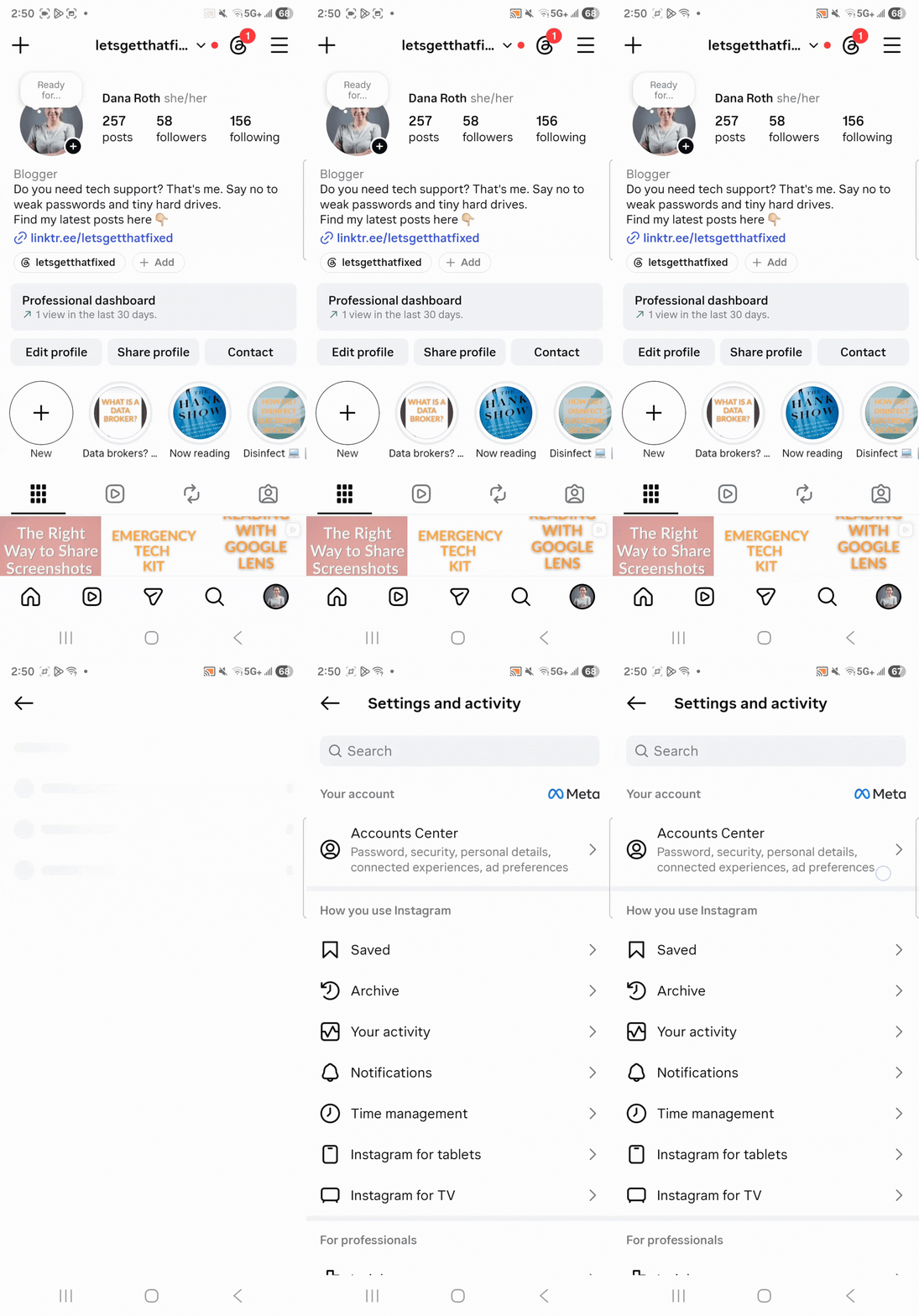
In Instagram, go to your profile and click the menu button in the top right-hand corner. Meta Accounts Center is at the top of the menu.
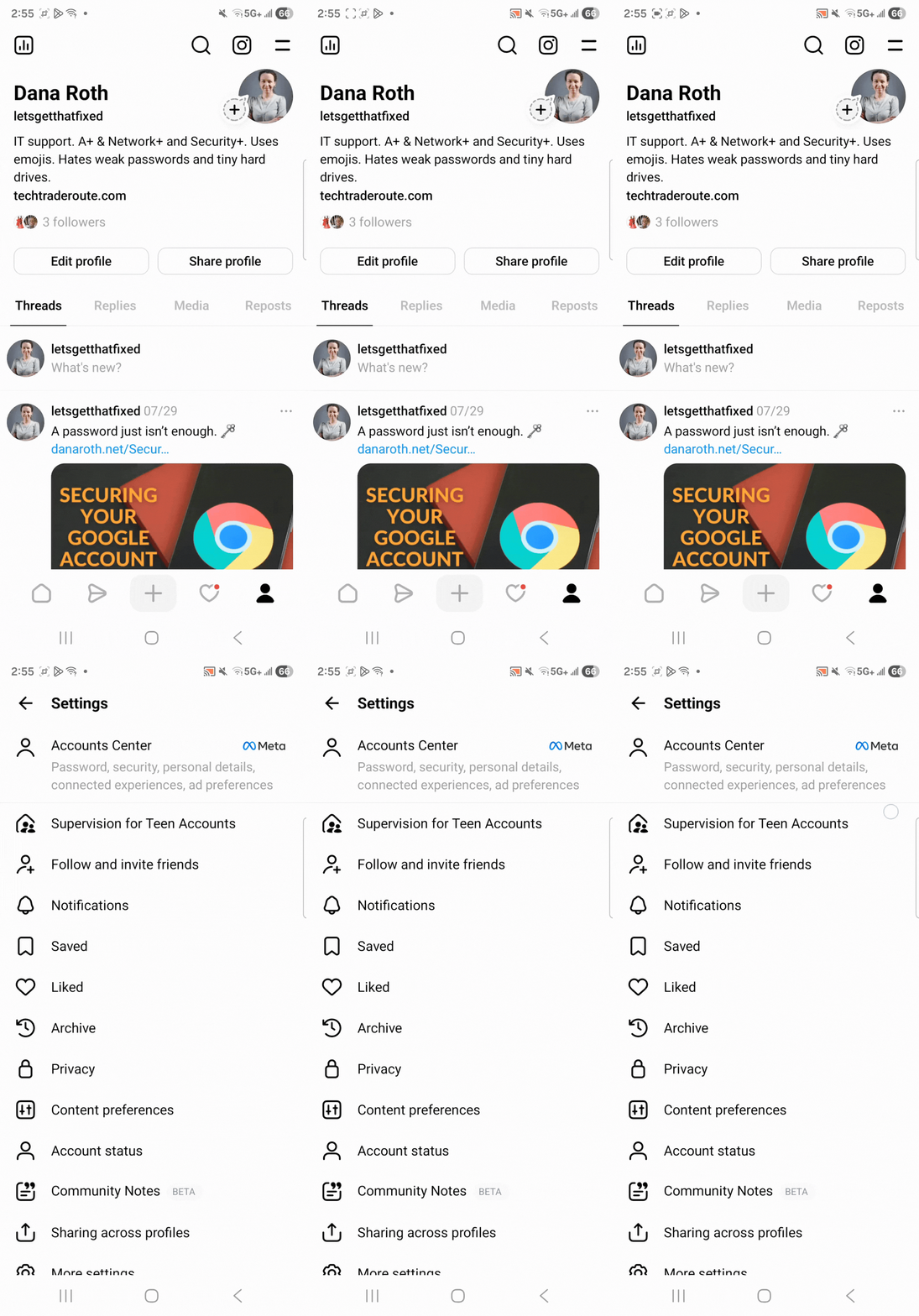
In Threads, go to your profile and click the menu button in the top right-hand corner. Meta Accounts Center is at the top of the menu.
Let’s take a closer look at the two most important parts of Meta Accounts Center: Password and security and Ad preferences.
Password and security
There are actually three sections here, but I will only talk about the first two: Login & recovery and Security checks.
Login & recovery
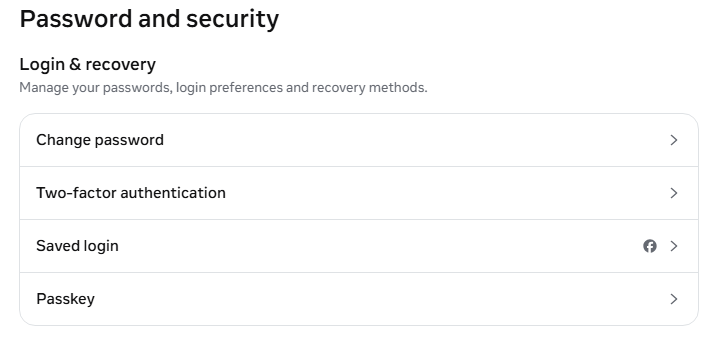
Login & recovery is where you start. You can change your password here, but that is only the beginning. There are more things you can add to your accounts to make it harder for someone else to break in.
You can set up two-factor authentication, an extra step after entering your password. Your options here are an authenticator app like Google Authenticator, a text message, or a security key. If you are on your smartphone or tablet, you can add a verification selfie.
You can save your account login information on certain devices; this will allow you to get back in without entering your password every time. Or you can make a passkey; this will allow you to log into your account the same way you unlock your computer, smartphone, or tablet.
Security checks
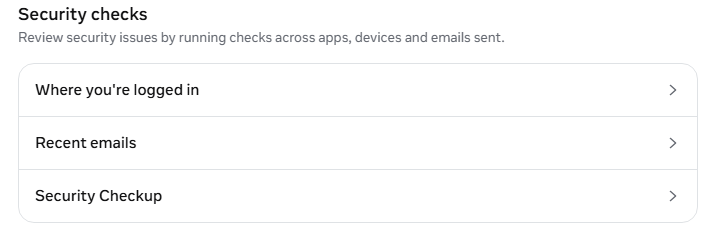
The Security checks menu is for more advanced options. This is where you can keep an eye on your accounts to see if there are any security problems.
Where you’re logged in shows you all the devices where you are logged into your account. Are you still logged in on someone else’s computer – or is someone logged into your account somewhere else?
Recent emails keeps track of email messages that Facebook has sent to you in the last two weeks. It separates security notifications from ordinary messages like your friends’ birthdays.
Security Checkup is where Meta will give you a list of suggested actions to take. Review the email and phone number associated with your account. Do you have an old email or phone number listed there, even though you don’t use them any more? See when and where your account was signed into. This can help you see if someone else is trying to log into your profile and break in.
Ad Preferences
As you might have guessed, the Ad Preferences sections controls everything to do with ads you’ll see on Facebook and Instagram.
Customize ads
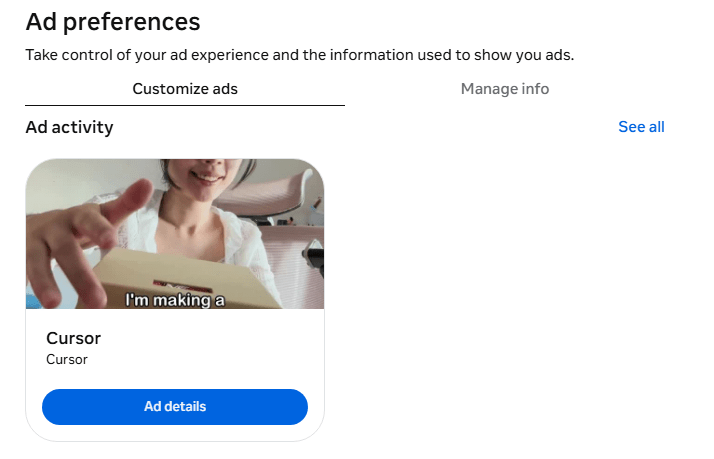
The first thing you will see is the Customize ads tab. Here is where you will find lists of all the ads you’ve interacted with, ads that you’ve saved, the companies whose ads you’ve seen, and the topics you’ve seen ads for. Since this is a place for customizations, you can choose what kind of ads you’d like to see and which company’s ads you would like to hide.
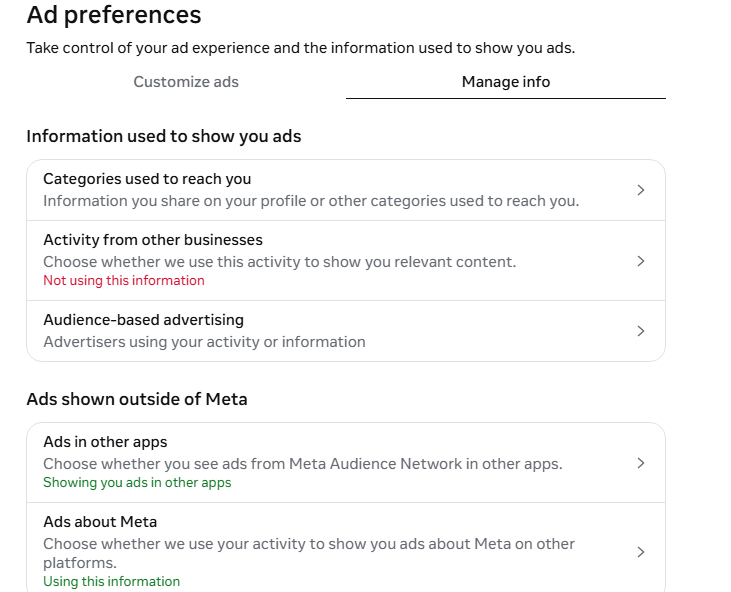
The other tab is Manage info. This is where you can really change your Facebook and Instagram experience.
Information used to show you ads shows you how your information is used to target you. It’s based on the information you share on your profile, how interact with other businesses online, and the advertisers who have been tracking you.
In Ads shown outside of Meta, you can even control which ads follow you outside of the Meta universe. You can turn off Meta’s ability to send the same ads after you while you’re on another website or social network.
Meta owns three of the most popular social media networks in the world. Securing Meta accounts like Facebook, Instagram, and Threads is an important step in keeping your online life safe.