Raspberry Pi: Google Calendar
How did I end up making a Raspberry Pi Google Calendar? It’s a long story.
Raspberry Pi computers are made in the UK by the Raspberry Pi Foundation. They are mostly small devices that are designed to be affordable and portable, but powerful enough to run their own operating system.
Back in 2021, I bought a Raspberry Pi 4 desktop kit because it was on sale. I had been reading about Raspberry Pi for a while on social media. There were a lot of interesting articles about the projects people had created, but I was not used to tinkering with devices. I hadn’t built a computer from scratch in years. The desktop kit seemed like a much easier device to use and I wanted to try it for myself. I also got some circuitry parts for future projects.
I happened to have a small Hanns G flatscreen TV that I turned into a monitor (after getting a DVI port convertor). Since the kit didn’t have any speakers, I also got a small Bluetooth speaker for sound. But what was I going to do next? The projects I found at the time seemed very complicated and I felt intimidated. I ended up not trying any of them and I left the Raspberry Pi alone.
Recently, I picked it up again. This time I searched for much simpler projects that would not need any extra parts. For my first project, I decided to pick a project that would turn the monitor into a display for my Google calendar.
This Google calendar project comes from Pi My Life Up. Everything is explained simply and the instructions are very well-organized. The tutorial calls for a touchscreen, but my monitor worked just as well.
Going through the Pi Google Calendar project
The first step was to make sure that the OS was up to date, which took longer than I thought it would. Then again, I hadn’t turned it on in quite a while. After the updates were finally done, I logged into my Google account to get my calendar.
The next step was to make an HTML file to display the calendar. It was a good way to practice Linux commands, which I hadn’t used in a long time. I also had to create the file with the text editor app nano.
There were few hiccups, however:
- There was an error in step 10. In that command string, put a space between “chromium” and “-browser.”
- In step 13, you make a file that will make your calendar display automatically after you turn your Raspberry Pi on. I didn’t realize at first that I was supposed to remove the brackets for the “<user>” placeholder text. Then I realized that the username the file needed was for the Raspberry Pi’s operating system, not my Google account.
I was able to fix the problems, and this is the result!
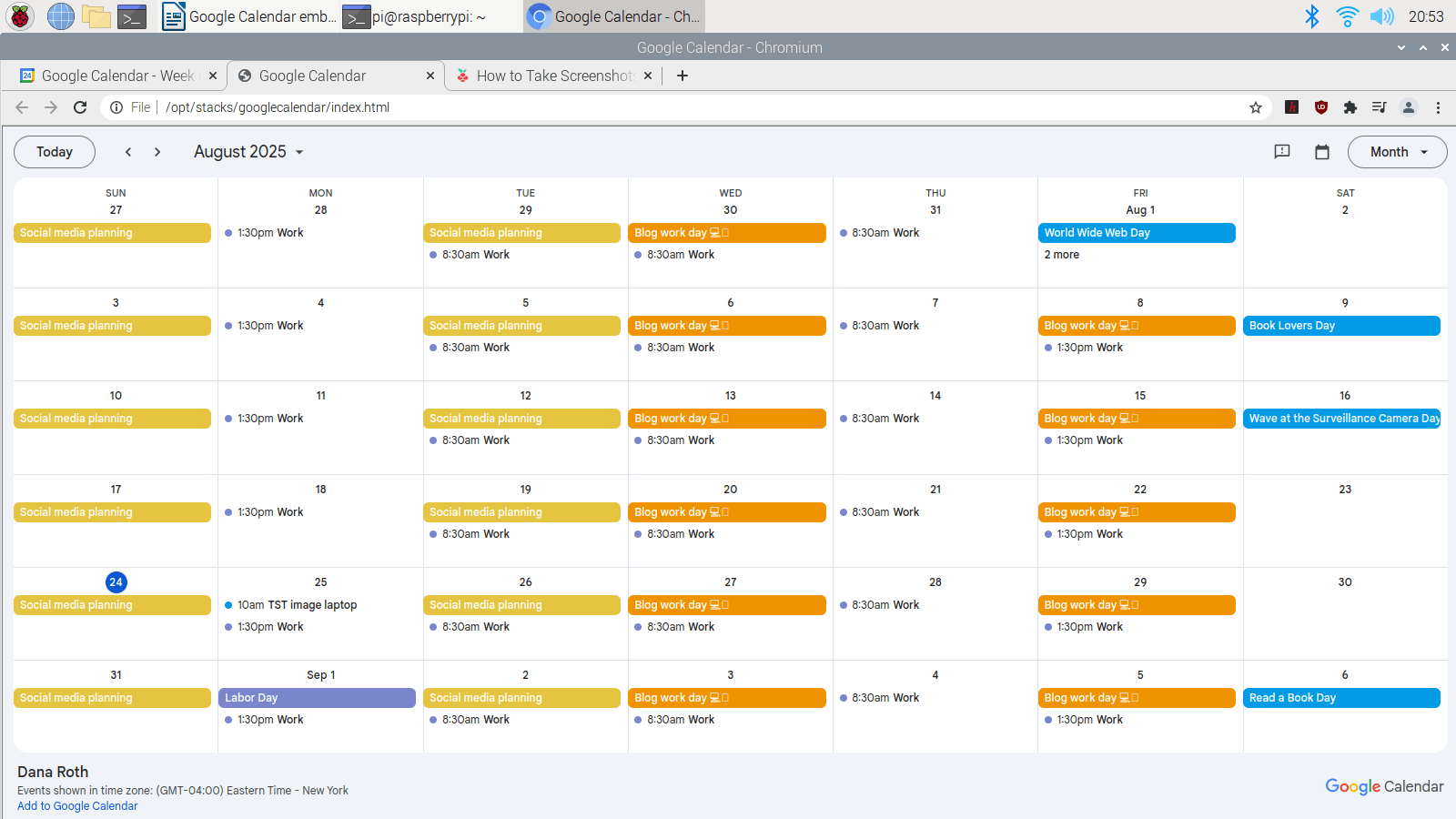
Making a Raspberry Pi Google calendar device was a fun introduction to the world of Pi projects. I can’t wait to do more.